If your WordPress website uses Contact Form 7 and your users need to upload more than one file, you may have already discovered a limitation with the standard file upload field.
Contact Form 7 provides a simple file-upload field that works well for basic forms. You can specify accepted file types and set a maximum file size. But when your website needs multiple file uploads, drag-and-drop functionality, upload progress, better validation, and a smoother user experience, a dedicated file-upload extension can make a significant difference.
That is where Drag and Drop Multiple File Upload for Contact Form 7 comes in.
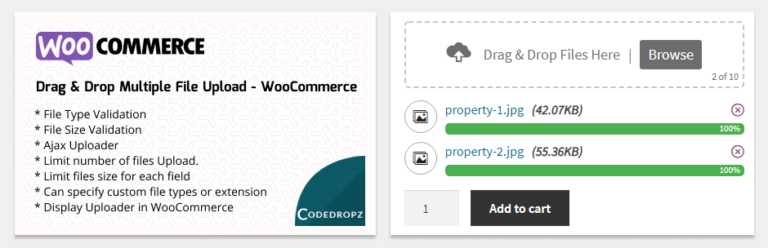
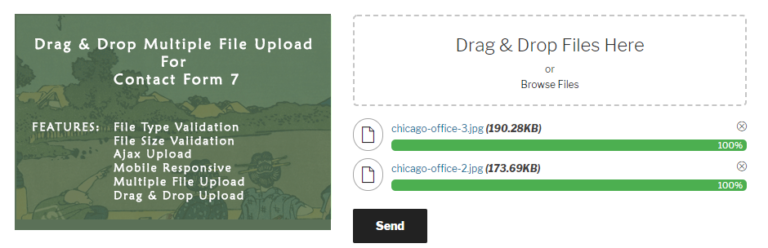
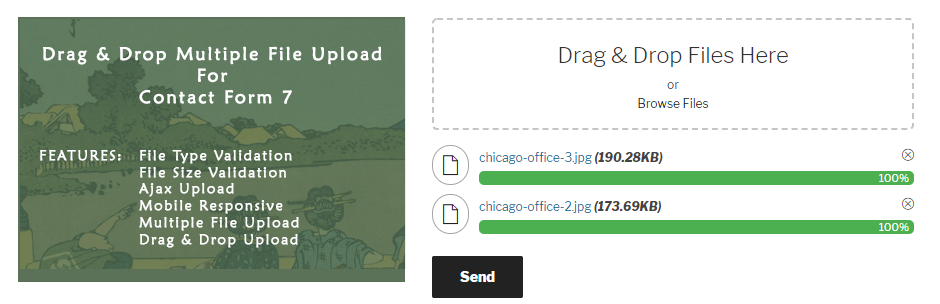
The plugin extends Contact Form 7 with a dedicated multiple-file upload experience, allowing visitors to drag and drop files or select multiple files from their device. It also provides AJAX uploading, file validation, upload limits, progress indicators, and the ability to remove files before submitting the form.
What Is Contact Form 7’s Standard File Upload?
Contact Form 7 includes a basic [file] form-tag for uploading files.
For example:
[file your-file]
You can also control accepted file types and maximum file size:
[file your-file filetypes:pdf|jpg|png limit:5mb]
This is useful when your form only needs a simple upload field-for example, allowing a visitor to upload one PDF document or one image.
Contact Form 7’s documentation supports file-type restrictions and file-size limits through the filetypes: and limit: options.
However, many real-world forms require more.
A job application may need a résumé, portfolio, certificates, and supporting documents. A design agency may need multiple images, PDFs, or ZIP files. A customer-support form may require screenshots and other files.
As the number of files increases, a basic upload field can become less convenient for users.
Why Use a Multiple File Upload Plugin With Contact Form 7?
Drag and Drop Multiple File Upload for Contact Form 7 is designed for websites where file uploads are more than a simple single-file field.
Instead of asking users to repeatedly browse for files, the plugin gives them a dedicated upload area where they can select or drag and drop multiple files.
The result is a more modern upload experience while keeping Contact Form 7 as the form builder.
1. Upload Multiple Files at Once
One of the biggest advantages is the ability to upload multiple files through a single upload field.
For example, instead of creating several fields:
[file document-1]
[file document-2]
[file document-3]
[file document-4]
you can provide one multiple-file upload area.
Users can select several files from their computer or drag multiple files directly into the upload area.
This is especially useful for:
- Job applications
- Quote request forms
- Design submissions
- Real estate inquiries
- Insurance forms
- Customer support
- Document collection
- Photography websites
- Construction and architectural websites
- School and university forms
The plugin supports limits on both the number of files and the file size, giving administrators more control over what visitors can upload.
2. Give Visitors a Drag-and-Drop Experience
The standard file input can feel outdated, particularly on websites that require users to upload several files.
A drag-and-drop interface makes the process much more intuitive.
Instead of:
Choose File → Upload → Repeat
users can simply:
Drag → Drop → Upload
They can also use the normal browse-file option if they prefer.
The plugin supports both drag-and-drop and traditional file selection, making it suitable for desktop and mobile users.
3. Show Upload Progress
Uploading several files can take time.
Without visual feedback, visitors may wonder whether the upload is working or whether they should click the submit button again.
The plugin provides an AJAX-based uploader with a progress bar, allowing users to see the upload status.
This small interface improvement can make your form feel significantly more professional.
More importantly, it separates the file-upload process from the traditional experience of waiting for the entire form to submit.
4. Validate Files Before They Are Submitted
Not every file should be accepted by your website.
For example, a recruitment form might only accept:
- DOC
- DOCX
while a photography form might accept:
- JPG
- JPEG
- PNG
The plugin allows you to specify acceptable file types and configure file-size restrictions. You can also limit how many files a visitor can upload.
This gives website administrators greater control over the files submitted through their forms.
5. Let Users Remove a File Before Submission
Imagine a visitor selects five files but accidentally chooses the wrong one.
With a basic file-input workflow, correcting the selection can be inconvenient.
The Drag and Drop Multiple File Upload plugin allows users to remove an uploaded file before the form is submitted.
That means users can review their files and correct mistakes before sending the form.
6. Send Uploaded Files as Email Attachments or Links
Another important consideration is what happens after a visitor uploads their files.
The plugin can work with Contact Form 7’s email workflow and allows uploaded files to be handled as email attachments or links.
Sending links can be particularly useful when files are large, because email systems can impose attachment-size limitations.
Instead of putting every file directly into an email, your notification can contain links to the uploaded files.
This can make file-heavy forms easier to manage.
7. Better for Forms That Collect Real Documents
The difference becomes especially noticeable when a form is designed around document collection.
Consider a job application form.
You might ask applicants for:
- Resume
- Cover letter
- Portfolio
- Certificates
- Identification
- Supporting documents
With a basic file-upload field, collecting several documents can require multiple upload fields.
A multiple-file upload field gives you a much cleaner alternative:
Upload your documents
Then the applicant can select multiple files at once.
This reduces friction and keeps the form interface cleaner.
8. Multiple Drag-and-Drop Fields in One Form
Some forms need different categories of uploads.
For example:
Project Images
Upload JPG or PNG files.
Project Documents
Upload PDF or DOCX files.
Additional Files
Upload other supporting documents.
The plugin supports multiple drag-and-drop upload fields within the same Contact Form 7 form.
This gives developers considerably more flexibility when designing complex forms.
Contact Form 7 File Upload vs. Multiple File Upload
The important distinction is not that the standard Contact Form 7 uploader is “bad.”
It is simply basic.
| Feature | Contact Form 7 File Field | Drag & Drop Multiple File Upload |
|---|---|---|
| Single file upload | ||
| Multiple files | Limited/basic field approach | |
| Drag and drop | ||
| AJAX uploader | ||
| Upload progress | ||
| File type validation | ||
| File size limits | ||
| Limit number of files | ||
| Remove uploaded files before submission | ||
| Multiple upload fields | ||
| Email attachments | ||
| Email file links | ||
| Large-file uploading | Server-dependent | PRO feature |
| Image previews | PRO feature | |
| ZIP files | PRO feature | |
| Cloud/remote storage | PRO feature |
Contact Form 7 itself supports basic file-type and file-size restrictions, while the plugin adds a dedicated multiple-file upload workflow and additional features.
When Should You Use Contact Form 7’s Basic File Upload?
You don’t always need a plugin.
If your form only needs visitors to upload one small file, Contact Form 7’s built-in [file] field may be completely sufficient.
For example:
Upload your résumé:
[file resume]
There is no reason to add additional functionality if your website doesn’t need it.
But if your users regularly need to upload several files, a dedicated multiple-file uploader becomes much more valuable.
When Should You Use Drag & Drop Multiple File Upload?
Consider using the plugin when your website needs:
- Multiple file uploads
- Drag-and-drop uploading
- Upload progress indicators
- File-type restrictions
- File-size restrictions
- Maximum file counts
- Multiple upload areas
- File removal before submission
- Email attachments
- File links in email notifications
- Large-file uploads
- Image previews
- ZIP file creation
- Automatic file deletion
- Cloud or remote storage
The PRO version expands the workflow further with features such as chunked uploads, large-file support, image previews, ZIP creation, custom upload directories, automatic deletion, remote storage integrations, and more.
Built for Contact Form 7
One of the biggest advantages is that you don’t need to replace Contact Form 7.
You can continue using the form builder you already know and add a more capable file-upload experience to it.
The plugin integrates directly into the Contact Form 7 workflow through its own multiple-file upload field and settings.
That makes it particularly useful for WordPress developers, agencies, freelancers, and website owners who already have Contact Form 7 installed.
A Better File Upload Experience Can Mean Less Friction
Forms are often where website visitors become leads, customers, applicants, or clients.
Every unnecessary step creates friction.
If someone needs to upload six documents, asking them to repeatedly interact with individual file fields isn’t the most convenient experience.
A drag-and-drop multiple-file uploader makes that process simpler:
Select multiple files → Upload → Review → Submit
It’s a small improvement to the interface, but it can make a large difference to the overall form experience.
Try Drag & Drop Multiple File Upload for Contact Form 7
If you use Contact Form 7 and need more than a basic file input, Drag and Drop Multiple File Upload for Contact Form 7 is designed to give your forms a more flexible file-upload workflow.
The free version includes multiple-file uploading, drag-and-drop support, AJAX uploading, file validation, file-size limits, upload limits, progress indicators, mobile responsiveness, and email attachment/link options.
For more demanding projects, the PRO version adds advanced functionality for large files, chunked uploads, image previews, ZIP creation, custom storage, remote storage integrations, and advanced file management.
Ready to improve your Contact Form 7 file uploads?
Get Drag & Drop Multiple File Upload for Contact Form 7
Frequently Asked Questions
Can Contact Form 7 upload multiple files?
Contact Form 7’s standard file field is designed as a basic file-upload field. If you need a dedicated multiple-file drag-and-drop experience, an extension such as Drag and Drop Multiple File Upload can add that functionality.
How do I add multiple file uploads to Contact Form 7?
Install and activate Drag and Drop Multiple File Upload, then configure the upload field through the plugin’s Contact Form 7 integration. The plugin provides its own multiple-file upload field and supports limits for file count, file size, and file types.
Can Contact Form 7 upload PDF, JPG, PNG, and other files?
Yes. Contact Form 7 allows administrators to specify acceptable file types using the filetypes: option. The multiple-file upload plugin also provides configurable file-type validation.
Can I limit the number of files users can upload?
Yes. Drag and Drop Multiple File Upload supports a maximum file count for an upload field.
Can uploaded files be sent by email?
Yes. Uploaded files can be configured to be sent as email attachments or represented as links in the email notification.
Can I upload large files with Contact Form 7?
Large-file uploading depends on your hosting/server configuration and the upload method being used. The PRO version of Drag and Drop Multiple File Upload provides chunked uploads designed to handle larger files more reliably.
Final Takeaway
Contact Form 7 is excellent for building simple WordPress forms. But when your forms need serious file-upload functionality, a dedicated multiple-file uploader can provide a much better experience.
If your visitors need to upload multiple documents, images, or other files, adding drag-and-drop uploading, progress feedback, validation, file limits, and flexible delivery options can turn a basic upload field into a much more capable file-submission system.
Contact Form 7 handles the form. Drag & Drop Multiple File Upload handles the files.