Contact Form 7 includes a built-in file upload field that works well for basic file-upload requirements. Visitors can select a file and submit it along with the form.
However, the default file upload experience can be quite basic, especially when your customers need to upload multiple files or want more feedback while their files are being uploaded.
A more modern upload interface can make the process easier and give users better visibility into what’s happening with their files.
The standard Contact Form 7 file upload experience
The standard Contact Form 7 file field provides the basic functionality needed to select a file from a user’s device.

For a simple form that only requires one file, this may be enough.
But consider a form where customers need to upload several images, documents, or other files. A basic file input doesn’t provide much information about the upload process or give users a convenient way to manage multiple files.
For example, customers may want to know:
- How many files have been selected
- Which files are being uploaded
- Whether an upload is still in progress
- Whether a file was uploaded successfully
- Whether a file failed validation
- How much of the upload has completed
This is where an enhanced file-upload interface can provide a better experience.
Give Contact Form 7 a modern file upload interface
Drag & Drop Multiple File Upload for Contact Form 7 adds a more modern upload experience to Contact Form 7.
Instead of relying on a basic file input, you can provide customers with a dedicated upload area where they can select or drag and drop files.
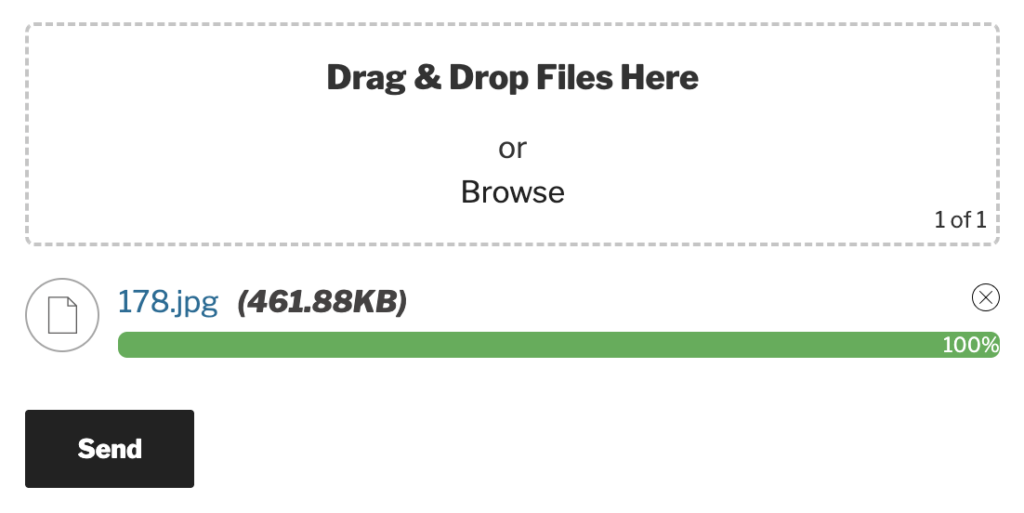
The uploader can display useful information during the upload process, including upload progress and file status.
It also uses AJAX-based uploads so files can be uploaded without requiring the entire page to reload.
Multiple file uploads
If your customers need to submit several files, you can configure the uploader to accept multiple files through a single form field.
This can be useful for:
- Job applications with multiple documents
- Customers submitting several product images
- Design and artwork submissions
- Insurance claims with multiple photos
- School or university applications
- Support forms with screenshots and documents
Instead of adding several separate file fields, you can give customers one upload area for their files.
Customize the uploader from the Contact Form 7 field generator
You don’t need to manually build the upload field.
After installing the plugin, the Contact Form 7 form-tag generator provides options for creating and configuring the upload field.
You can configure settings such as:
- Maximum number of files
- Maximum file size
- Allowed file types
- Upload field text
- Upload limits
- Error messages
- Other uploader options
Once configured, the generated form tag can be added directly to your Contact Form 7 form.
This makes it easier to create different upload configurations for different forms.
Configure the plugin from its settings
The plugin also provides dedicated settings where you can configure how the uploader behaves across your Contact Form 7 forms.
This allows you to customize the upload experience without having to build the functionality yourself.
For example, you can configure the uploader based on the type of files your customers need to submit and the requirements of your website.
Free and Pro options
You can start with the free version of Drag & Drop Multiple File Upload for Contact Form 7 if you need a better multiple-file upload experience.
The free version provides the core drag-and-drop upload functionality and is available directly from WordPress.org.
If you need more advanced functionality, the Pro version adds additional features for websites with more demanding file-upload requirements.
Depending on your requirements, Pro can provide features such as:
- Large and chunked file uploads
- Image previews
- Advanced file handling
- Custom upload folders
- Filename customization
- ZIP file handling
- Remote storage integrations
Need remote storage?
If uploaded files shouldn’t remain on your WordPress server, the Extended version supports remote storage integrations such as:
- Google Drive
- Amazon S3
- Dropbox
- FTP
- One-Drive
Remote storage integrations require additional configuration, such as API tokens, access keys, or secret keys, depending on the service.
Which version should you use?
If you need a modern multiple-file upload experience with the core uploader functionality, the free version is a good place to start.
If you need additional file-upload features, the Standard Pro version provides more advanced functionality.
If your main requirement is sending uploaded files to external storage such as Google Drive, Amazon S3, Dropbox, One-Drive or FTP, the Extended version is designed for those integrations.
Improve the Contact Form 7 upload experience
Contact Form 7’s standard file upload field is useful for basic uploads, but you may need a more convenient interface when customers are submitting multiple files.
With drag-and-drop uploads, AJAX uploading, upload progress, file validation, and configurable multiple-file uploads, you can provide a more modern experience without replacing Contact Form 7.
Try the free version of Drag & Drop Multiple File Upload for Contact Form 7 and see whether it fits your website’s requirements.


